

36 KiB
A self-hosted docker container which allows you to retrieve M3U playlists and EPG guide data from numerous online IPTV services.
♾️ TVApp2 ♾️


- About
- Building
tvappImage - Using
tvappImage - Troubleshooting
- Run Error: Error serving playlist: ENOENT: no such file or directory, open
/usr/src/app/xmltv.1.xml - Build Error: s6-rc-compile: fatal: invalid /etc/s6-overlay/s6-rc.d/certsync/type: must be oneshot, longrun, or bundle
- Build Error: unable to exec /etc/s6-overlay/s6-rc.d/init-envfile/run: Permission denied
- Run Error: Error serving playlist: ENOENT: no such file or directory, open
- Extra Notes
- 🏆 Dedication
- ✨ Contributors
About
TVApp2 is a docker image which allows you to download M3U playlist and EPG guide data which can be plugged into your IPTV applications such as Jellyfin, Plex, and Emby. It is a revision of the original app by dtankdempse which is no longer available. This app fetches data for:
- TheTvApp
- TVPass
- MoveOnJoy
- More coming soon
This project contains several repositories which all share the same code; use them as backups:
Quick Install
To install TVApp2 in docker; you will need to use either the docker run command, or create a docker-compose.yml file which contains information about how to pull and start up.
Type out your docker run command, or prepare a docker-compose.yml script. Examples are provided below. We have also provided charts with a list of the registries you can pull the image from, and a list of all the available environment variables you can use.
Pick one registry URL from the list Registry URLs and put it in your docker run command, or in your docker-compose.yml.
For the environment variables, you may specify these in your docker run command or docker-compose.yml file. See the examples below.
Registry URLs
| Pull URL | Platform | Registry | Version |
|---|---|---|---|
ghcr.io/thebinaryninja/tvapp2:latest |
Github | amd64 | |
ghcr.io/thebinaryninja/tvapp2:amd64 |
Github | amd64 | |
ghcr.io/thebinaryninja/tvapp2:arm64 |
Github | arm64 | |
thebinaryninja/tvapp2:latest |
Dockerhub | amd64 |  |
thebinaryninja/tvapp2:1.0.0-amd64 |
Dockerhub | amd64 | |
thebinaryninja/tvapp2:1.0.0-arm64 |
Dockerhub | arm64 | |
git.binaryninja.net/binaryninja/tvapp2:latest |
Gitea | amd64 | |
git.binaryninja.net/binaryninja/tvapp2:1.0.0-amd64 |
Gitea | amd64 | |
git.binaryninja.net/binaryninja/tvapp2:1.0.0-arm64 |
Gitea | arm64 |
Environment Variables
| Env Var | Default | Description |
|---|---|---|
TZ |
Etc/UTC |
Timezone for error / log reporting |
WEB_IP |
0.0.0.0 |
Port to use for webserver |
WEB_PORT |
4124 |
IP to use for webserver |
URL_REPO |
https://git.binaryninja.net/BinaryNinja/ |
Determines where the data files will be downloaded from. Do not change this or you will be unable to get M3U and EPG data. |
WORKING_DIR |
/usr/bin/app |
Folder where TVApp2 will be installed and ran |
Run Command
If you want to bring the container up using docker run; execute the following:
docker run -d --restart=unless-stopped \
  --name tvapp2 \
  -p 4124:4124 \
  -e "WORKING_DIR=/usr/bin/app" \
  -e "TZ=Etc/UTC" \
  -v ${PWD}/app:/usr/bin/app ghcr.io/thebinaryninja/tvapp2:latest
docker-compose.yml
If you want to use a docker-compose.yml to bring TVApp2 up; you may use the following example:
services:
    tvapp2:
        container_name: tvapp2
        image: ghcr.io/thebinaryninja/tvapp2:latest                 # Image: Github
      # image: thebinaryninja/tvapp2:latest                         # Image: Dockerhub
      # image: git.binaryninja.net/binaryninja/tvapp2:latest        # Image: Gitea
        restart: unless-stopped
        volumes:
            - /etc/timezone:/etc/timezone:ro
            - /etc/localtime:/etc/localtime:ro
            - /var/run/docker.sock:/var/run/docker.sock
            - ./config:/config
            - ./app:/usr/bin/app
        environment:
            - TZ=Etc/UTC
Once you bring the docker container up; open your web-browser and access the container's webserver by going to:
http://container-ip:4124
Copy both the M3U playlist URL and the EPG guide URL, and paste it in your favorite IPTV application; Plex, Jellyfin, Emby, etc.
If you need more extensive instructions on installing and using this container, read the section:
How It Works
- TVApp2 makes fetch request to tvapp2-externals making updates to external formats agnostic to pushing a new container image.
- TVApp2 makes fetch request to XMLTV-EPG making updates to EPG data based on customized channel ids. Channel ids are specific to each EPG record which makes obfuscating channel ids difficult.
graph TD
A[tvapp2] <--> |Fetch Formats| B(tvapp2-externals)
A[tvapp2] <--> |Fetch XMLTV/EPG| C(XMLTV-EPG)
B(tvapp2-externals) --> D{Pull Dynamic Formats}
C(XMLTV-EPG) ---> E{Pull Dynamic EPG}
Building tvapp Image
These instructions outline how the TVApp2 docker image is set up, and how to build your own TVApp2 docker image.
How It Works
The TVApp2 application requires one dependency docker image, which is utilized as the base image and contains Alpine linux. You may use the pre-compiled docker image provided by us on Github, or you may choose to build your own. The base alpine image is available at:
This base Alpine image contains s6-overlay and comes with several features such as plugins, service management, migration tools, etc.
The process of building both images are outlined below. But please remember that you do not need to build the base Alpine image; we already provide it at: https://github.com/Aetherinox/docker-base-alpine/pkgs/container/alpine-base
%%{init: { 'themeVariables': { 'fontSize': '10px' }}}%%
flowchart TB

subgraph GRAPH_TVAPP ["Build tvapp2:latest"]
    direction TB
    obj_step10["`> git clone git.binaryninja.net/BinaryNinja/tvapp2.git`"]
    obj_step11["`**Dockerfile
     Dockerfile.aarch64**`"]
    obj_step12["`> docker build \
    --build-arg VERSION=1.0.0 \
    --build-arg BUILDDATE=20250225 \
    -t tvapp:latest \
    -t tvapp:1.0.0-amd64 \
    -f Dockerfile . \`"]
    obj_step13["`Download **alpine-base** from branch **docker/alpine-base**`"]
    obj_step14["`New Image: **tvapp2:latest**`"]

    style obj_step10 text-align:center,stroke-width:1px,stroke:#555
    style obj_step11 text-align:left,stroke-width:1px,stroke:#555
    style obj_step12 text-align:left,stroke-width:1px,stroke:#555
    style obj_step13 text-align:left,stroke-width:1px,stroke:#555
end

style GRAPH_TVAPP text-align:center,stroke-width:1px,stroke:transparent,fill:transparent

subgraph GRAPH_ALPINE["Build alpine-base:latest Image"]
direction TB
    obj_step20["`> git clone -b docker/alpine-base github.com/Aetherinox/docker-base-alpine.git`"]
    obj_step21["`**Dockerfile
     Dockerfile.aarch64**`"]
    obj_step22["`> docker build \
    --build-arg VERSION=3.20 \
    --build-arg BUILDDATE=20250225 \
    -t docker-alpine-base:latest \
    -t docker-alpine-base:3.20-amd64 \
    -f Dockerfile . \`"]
    obj_step23["`Download files from branch **docker/core**`"]
    obj_step24["`New Image: **alpine-base:latest**`"]

    style obj_step20 text-align:center,stroke-width:1px,stroke:#555
    style obj_step21 text-align:left,stroke-width:1px,stroke:#555
    style obj_step22 text-align:left,stroke-width:1px,stroke:#555
    style obj_step23 text-align:left,stroke-width:1px,stroke:#555
end

style GRAPH_ALPINE text-align:center,stroke-width:1px,stroke:transparent,fill:transparent

GRAPH_TVAPP --> obj_step10 --> obj_step11 --> obj_step12 --> obj_step13 --> obj_step14
GRAPH_ALPINE --> obj_step20 --> obj_step21 --> obj_step22 --> obj_step23 --> obj_step24
When building your TVApp2 images with the commands provided below, ensure you create two sets of tags:
| Architecture | Dockerfile | Tags |
|---|---|---|
amd64 |
Dockerfile |
tvapp2:latest tvapp2:1.0.0 tvapp2:1.0.0-amd64 |
arm64 |
Dockerfile.aarch64 |
tvapp2:1.0.0-arm64 |
The amd64 arch gets a few extra tags because it should be the default image people clone.
Before Building
Prior to building the docker image, you must ensure the sections below are completed.
If the listed tasks above are not performed, your docker container will throw the following errors when started:
Failed to open apk database: Permission denieds6-rc: warning: unable to start service init-adduser: command exited 127unable to exec /etc/s6-overlay/s6-rc.d/init-envfile/run: Permission denied/etc/s6-overlay/s6-rc.d/init-adduser/run: line 34: aetherxown: command not found/etc/s6-overlay/s6-rc.d/init-adduser/run: /usr/bin/aetherxown: cannot execute: required file not found
LF over CRLF
You cannot utilize Windows' Carriage Return Line Feed. All files must be converted to Unix' Line Feed. This can be done with Visual Studio Code. OR; you can run the Linux terminal command dos2unix to convert these files.
If you cloned the files from the official repository TheBinaryNinja/tvapp2 and have not edited them, then you should not need to do this step.
Caution
Be careful using the command to change ALL files. You should NOT change the files in your
.gitfolder, otherwise you will corrupt your git indexes.If you accidentally run dos2unix on your
.gitfolder, do NOT push anything to git. Pull a new copy from the repo.
# Change ALL files
find ./ -type f | grep -Ev '.git|*.jpg|*.jpeg|*.png' | xargs dos2unix --

# Change run / binaries
find ./ -type f -name 'run' | xargs dos2unix --
Set +x / 0755 Permissions
The files contained within this repo MUST have chmod 755 / +x executable permissions.
find ./ -name 'run' -exec sudo chmod +x {} \;
[Optional]: If you want to set the permissions manually, run the following below. If you executed the find command above, you don't need to run the list of commands below:
sudo chmod +x /root/etc/s6-overlay/s6-rc.d/init-adduser/run
sudo chmod +x /root/etc/s6-overlay/s6-rc.d/init-crontab-config/run
sudo chmod +x /root/etc/s6-overlay/s6-rc.d/init-custom-files/run
sudo chmod +x /root/etc/s6-overlay/s6-rc.d/init-envfile/run
sudo chmod +x /root/etc/s6-overlay/s6-rc.d/init-folders/run
sudo chmod +x /root/etc/s6-overlay/s6-rc.d/init-keygen/run
sudo chmod +x /root/etc/s6-overlay/s6-rc.d/init-migrations/run
sudo chmod +x /root/etc/s6-overlay/s6-rc.d/init-nginx/run
sudo chmod +x /root/etc/s6-overlay/s6-rc.d/init-permissions/run
sudo chmod +x /root/etc/s6-overlay/s6-rc.d/init-php/run
sudo chmod +x /root/etc/s6-overlay/s6-rc.d/init-samples/run
sudo chmod +x /root/etc/s6-overlay/s6-rc.d/init-version-checks/run
sudo chmod +x /root/etc/s6-overlay/s6-rc.d/svc-cron/run
sudo chmod +x /root/etc/s6-overlay/s6-rc.d/svc-nginx/run
sudo chmod +x /root/etc/s6-overlay/s6-rc.d/svc-php-fpm/run
Build tvapp Image
After completing the items above, you can now build the TheBinaryNinja/tvapp2 image. You can now build the TvApp2 docker image. Pick your platform below and run the associated command. Most people will want to use amd64.
Instructions have been provided below on two different ways you can build the TvApp2 docker image. You can use either one, it depends on what tools you have available on the system you're.
Option 1: Using docker build
This method will show you how to build the TVApp2 docker image using docker build; this is typically what most people should use.
amd64
# Build tvapp2 amd64
docker build --network=host --build-arg VERSION=1.0.0 --build-arg BUILDDATE=20250224 -t tvapp2:latest -t tvapp2:1.0.0 -t tvapp2:1.0.0-amd64 -f Dockerfile .
arm64 / aarch64
# Build tvapp2 arm64
docker build --network=host --build-arg VERSION=1.0.0 --build-arg BUILDDATE=20250224 -t tvapp2:1.0.0-arm64 -f Dockerfile.aarch64 .
Option 2: Using docker buildx
This section explains how to build the TVApp2 docker image using docker buildx instead of docker build. It is useful when generating your app's image for multiple platforms.
All of the needed Docker files already exist in the repository. To get started, clone the repo to a folder
mkdir tvapp2 && cd tvapp2

# to clone from our gitea website
git clone https://git.binaryninja.net/BinaryNinja/tvapp2.git ./

# to clone from our github website
git clone https://github.com/TheBinaryNinja/tvapp2.git ./
Once the files are downloaded, create a new container for buildx
docker buildx create --driver docker-container --name container --bootstrap --use
Optional If you have previously created this image and have not restarted your system, clean up the original container before you build again:
docker buildx rm container

docker buildx create --driver docker-container --name container --bootstrap --use
You are now ready to build the TVApp2 docker image. Two different options are provided below:
- Option 1: Build & Save Local Image
- Use this option if you only wish to build the image and use it.
- Option 2: Build & Upload to Registry
- Use this option if you wish to build the image and publish it to a registry online for others to use.
Build & Save Local Image
The command below will build your TVApp2 docker image, and save a local copy of your docker app, which can be immediately used, or seen using docker ps.
amd64
# Build tvapp2 amd64
docker buildx build --no-cache --pull --build-arg VERSION=1.0.0 --build-arg BUILDDATE=20250224 -t tvapp2:latest -t tvapp2:1.0.0 --platform=linux/amd64 --output type=docker --output type=docker .
arm64 / aarch64
# Build tvapp2 arm64
docker buildx build --no-cache --pull --build-arg VERSION=1.0.0 --build-arg BUILDDATE=20250224 -t tvapp2:latest -t tvapp2:1.0.0 --platform=linux/arm64 --output type=docker --output type=docker .
If we list our docker images, we should see our new one:
$ docker images

tvapp2        1.0.0           122e9b2c6046   1 minute ago     107MB
tvapp2        1.0.0-amd64     122e9b2c6046   1 minute ago     107MB
tvapp2        latest          122e9b2c6046   1 minute ago     107MB
Build & Upload to Registry
This option builds your TVApp2 docker image, and then pushes the new image to a registry such as hub.docker.com or Github's registry ghcr.
Before you can push the image, ensure you are signed into Docker CLI. Open your Linux terminal and see if you are already signed in:
docker info | grep Username
If nothing is printed; then you are not signed in. Initiate the web login:
docker login
Some text will appear on-screen, copy the code, open your browser, and go to https://login.docker.com/activate
USING WEB BASED LOGIN
To sign in with credentials on the command line, use 'docker login -u <username>'

Your one-time device confirmation code is: XXXX-XXXX
Press ENTER to open your browser or submit your device code here: https://login.docker.com/activate

Waiting for authentication in the browser…
Once you are finished in your browser, you can return to your Linux terminal, and it should bring you back to where you can type a command. You can now verify again if you are signed in:
docker info | grep Username
You should see your name:
Username: Aetherinox
You are ready to build the TVApp2 docker image, run the command for your platform:
amd64
docker buildx build --no-cache --pull --build-arg VERSION=1.0.0 --build-arg BUILDDATE=20250224 -t tvapp2:latest -t tvapp2:1.0.0 --platform=linux/amd64 --provenance=true --sbom=true --builder=container --push .
arm64 / aarch64
docker buildx build --no-cache --pull --build-arg VERSION=1.0.0 --build-arg BUILDDATE=20250224 -t tvapp2:latest -t tvapp2:1.0.0 --platform=linux/arm64 --provenance=true --sbom=true --builder=container --push .
Option 3: Using package.json
This node project includes build commands. In order to use them you must install node on your machine.
sudo apt-get install node
To build the project, cd into the project folder and run the build command:
cd /home/docker/tvapp2/

npm run docker:build:amd64 --VERSION=1.0.1 --BUILDDATE=20250220
Platform Commands
The following is a list of the available commands you can pick from depending on how you would like to build TvAPP2:
| Command | Description |
|---|---|
docker:build:amd64 |
Build image using docker build for amd64 |
docker:build:arm64 |
Build image using docker build for arm64 / aarch64 |
docker:buildx:amd64 |
Build image using docker buildx for amd64 |
docker:buildx:arm64 |
Build image using docker buildx for arm64 / aarch64 |
Available Variables
The run command above has several variables you must specify:
| Variable | Description |
|---|---|
--VERSION=1.X.X |
The version to assign to the docker image |
--BUILDDATE=20250220 |
The date to assign to the docker image. Date format: YEAR / MONTH / DAY |
Using tvapp Image
To use the new TVApp2 image, you can either call it with the docker run command, or create a new docker-compose.yml and specify the image:
docker run
If you want to use the tvapp docker image in the docker run command, execute the following:
docker run -d --restart=unless-stopped -p 4124:4124 --name tvapp2 -v ${PWD}/app:/usr/bin/app ghcr.io/thebinaryninja/tvapp2:latest
docker-compose.yml
If you'd much rather use a docker-compose.yml file and call the tvapp image that way, create a new folder somewhere:
mkdir -p /home/docker/tvapp2
Then create a new docker-compose.yml file and add the following:
sudo nano /home/docker/tvapp2/docker-compose.yml
Add the following to your docker-compose.yml:
services:
    tvapp2:
        container_name: tvapp2
        image: ghcr.io/thebinaryninja/tvapp2:latest                 # Image: Github
      # image: thebinaryninja/tvapp2:latest                         # Image: Dockerhub
      # image: git.binaryninja.net/binaryninja/tvapp2:latest        # Image: Gitea
        restart: unless-stopped
        volumes:
            - /etc/timezone:/etc/timezone:ro
            - /etc/localtime:/etc/localtime:ro
            - /var/run/docker.sock:/var/run/docker.sock
            - ./config:/config
            - ./app:/usr/bin/app
        environment:
            - TZ=Etc/UTC
Once the docker-compose.yml is set up, you can now start your TVApp2 container:
cd /home/docker/tvapp2/
docker compose up -d
TVApp2 should now be running as a container. You can access it by opening your browser and going to:
http://container-ip:4124
Environment Variables
This docker container contains the following env variables:
| Env Var | Default | Description |
|---|---|---|
TZ |
Etc/UTC |
Timezone for error / log reporting |
WEB_IP |
0.0.0.0 |
Port to use for webserver |
WEB_PORT |
4124 |
IP to use for webserver |
URL_REPO |
https://git.binaryninja.net/BinaryNinja/ |
Determines where the data files will be downloaded from. Do not change this or you will be unable to get M3U and EPG data. |
WORKING_DIR |
/usr/bin/app |
Folder where TVApp2 will be installed and ran |
Troubleshooting
If you have issues building your TVApp2 docker image, please refer to the following sections below:
Run Error: Error serving playlist: ENOENT: no such file or directory, open /usr/src/app/xmltv.1.xml
This error occurs at run-time when attempting to spin up your TVApp2 docker container. If you receive this error, restart your TVApp2 docker container. Ensure that your docker container also has access to your docker network so that it can connect to our repository and fetch the data files it needs to generate your playlist.
If the error continues after doing the above; delete the existing image, and re-pull from one of our official sources.
Build Error: s6-rc-compile: fatal: invalid /etc/s6-overlay/s6-rc.d/certsync/type: must be oneshot, longrun, or bundle
This error means that you are attempting to combine files which are utilizing CRLF over LF; which is CR = Carriage Return and LF = Line Feed
The CRLF line break type is commonly used in Windows operating systems and DOS-based text files. It combines two characters: Carriage Return (CR) and Line Feed (LF).
The LF line break type is predominantly used in Unix, Linux, macOS, and modern text editors, including those for web development. In this convention, a single Line Feed character \n represents a line break. Unlike CR LF, there is no preceding Carriage Return character. The LF line break type solely relies on the line feed character to move to the next line.
If you attempt to build the TVApp2 docker image in Linux, but have modified the files in Windows, you may receive the following error:
s6-rc-compile: fatal: invalid /etc/s6-overlay/s6-rc.d/certsync/type: must be oneshot, longrun, or bundle
To correct this issue, cd into the folder with the TVApp2 files, and then convert them to LF using the library dos2unix. The command below will convert all files to LF, but will EXCLUDE the following:
.gitfolder.jpgimages.jpegimages.pngimages
cd /path/to/tvapp2
find ./ -type f | grep -Ev '.git|*.jpg|*.jpeg|*.png' | sudo xargs dos2unix --
Warning
Do not run
dos2unixon your.gitfolder or you will corrupt your git indexes and will be unable to push commits.If you accidentally run dos2unix on your .git folder, do NOT push anything to git. Pull a new copy from the repo.
Build Error: unable to exec /etc/s6-overlay/s6-rc.d/init-envfile/run: Permission denied
There are multiple errors you can receive when attempting to run your TVApp2 docker image. You may receive any of the following errors:
Failed to open apk database: Permission denieds6-rc: warning: unable to start service init-adduser: command exited 127unable to exec /etc/s6-overlay/s6-rc.d/init-envfile/run: Permission denied/etc/s6-overlay/s6-rc.d/init-adduser/run: line 34: aetherxown: command not found/etc/s6-overlay/s6-rc.d/init-adduser/run: /usr/bin/aetherxown: cannot execute: required file not found
If you receive any of the above errors; this means that you have not set your run files to have execute permissions +x. Run the following command in the root directory of your TVApp2 project folder:
find ./ -name 'run' -exec sudo chmod +x {} \;
After you have set these permissions, re-build your docker image using docker build or docker buildx. Then spin the container up.
Extra Notes
The following are other things to take into consideration when creating the TVApp2 image:
Accessing Container Shell
The TVApp2 docker image is built on Alpine Linux, but also includes the bash package. Use one of the following to access the shell for this container:
ash
docker exec -it tvapp2 ash
sh
docker exec -it tvapp2 sh
bash
docker exec -it tvapp2 bash
Custom Docker Image Scripts
These instructions are for Advanced Users Only
The 🔀 TheBinaryNinja/tvapp2 image supports the ability of adding custom scripts that will be ran when the container is started. To create / add a new custom script to the container, you need to create a new folder in the container source files /root folder
mkdir -p /root/custom-cont-init.d/
Within this new folder, add your custom script:
nano /root/custom-cont-init.d/my_customs_script
Your new custom script should be populated with the bash code you want to perform actions with such as the example below:
#!/bin/bash

echo "**** INSTALLING BASH ****"
apk add --no-cache bash
When you create the docker image, this new script will automatically be loaded. You can also do this via the 📄 docker-compose.yml file by mounting a new volume:
services:
    tvapp2:
        volumes:
            - ./config:/config
            - ./app:/usr/bin/app
            - ./custom-scripts:/custom-cont-init.d:ro
Note
if using compose, we recommend mounting them read-only (
:ro) so that container processes cannot write to the location.
Warning
The folder
📂 /root/custom-cont-init.dMUST be owned byroot. If this is not the case, this folder will be renamed and a new empty folder will be created. This is to prevent remote code execution by putting scripts in the aforesaid folder.
The 🔀 TheBinaryNinja/tvapp2 image already contains a custom script called 📄 /root/custom-cont-init.d/plugins. Do NOT edit this script. It is what automatically downloads the official TVApp2 plugins and adds them to the container.
🏆 Dedication
This repository and this project serves in memory of the developer dtankdempse. His work lives on in this project, and while a lot of it has changed, it all started because of him.

✨ Contributors
We are always looking for contributors. If you feel that you can provide something useful to Gistr, then we'd love to review your suggestion. Before submitting your contribution, please review the following resources:
Want to help but can't write code?
- Review active questions by our community and answer the ones you know.
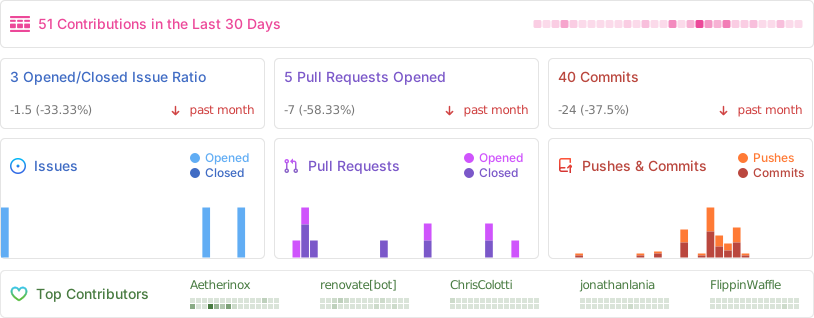
The following people have helped get this project going:


